


 0 Comments

Today’s cars have more than 30 different dashboard icons to indicate various vehicle functionalities or issues regarding engines, brakes, tires, battery, oil pressure, and many other important aspects of the vehicle operation.
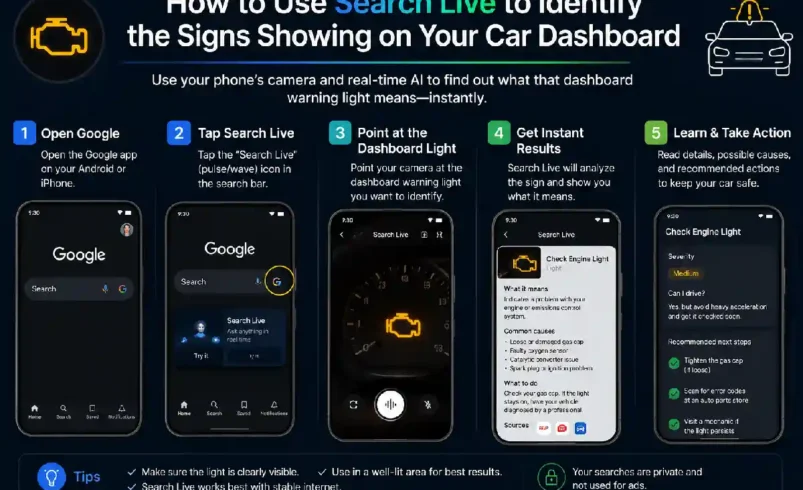
Identifying the meaning of a warning light can be quite a challenging task. Google Search Live may help you visually search for your concern via the camera of your phone and ask any questions about it. According to Google, Search Live allows you to have a back-and-forth voice conversation with Search using a camera to show something.
The process of identifying car dashboard signs using Google Search Live for those who are searching “how do I use Search Live to identify the signs showing on my car dashboard” is quite simple. Yet, the camera-based search result is meant to be an additional assistance in the identification of signs but not a replacement for your car owner’s manual.
What is Search Live?
Search Live is a Google Search experience that allows users to have a conversation with Search via a device’s camera. Google says that it is possible to have back-and-forth voice conversations with Search using the camera to show something.
Thus, the feature may prove its usefulness when it comes to objects and signs that are hard to describe with words.
Instead of writing:
“What does a red symbol shaped as an exclamation mark mean?”
you can show the dashboard symbol to Search and ask it about the meaning of this sign.
Google also provides an interesting feature called Google Lens that allows analyzing images and objects and providing relevant search results. Google Lens is available on Android as camera-based searching via Lens. Moreover, Chrome allows searching from an image using Lens.
How Do I Use Search Live to Identify the Signs Showing on My Car Dashboard?
The easiest approach to this assignment is using your phone after parking your car.
Step 1: Parking Your Car
Never use your camera or Search Live while driving.
Find a safe place where you can park your car and use your phone.
It is crucial to remember that the appearance of a warning light indicates possible serious problems in the functioning of your car; therefore, it requires your close attention.
Step 2: Opening the Google Search
Launch the Google app or any supported Search experience on your phone.
Due to the fact that the availability of Search Live depends on the particular device, your account, your location, and feature rollout by Google, interfaces may vary.
According to the Google documentation, currently, Search Live is considered to be a camera-enabled conversational Search experience on Android.
Step 3: Launching Search Live
If Search Live is available, choose it.
At the start of the live camera experience, aim the camera at your car dashboard.
Make sure the warning symbol is located in the middle of the screen and is clearly visible.
Step 4: Making a Proper Request
Your request may sound the following way:
“What does this dashboard warning light mean?”
However, you can make a more specific request:
“What does this red warning light mean on my car dashboard?”
Or,
“Is this dashboard warning light usually related to engine, brake, oil, or battery problems?”
Moreover, you can make a conversation request since Search Live provides you with an opportunity to do so.
Step 5: Indicating the Color of the Symbol
The dashboard warning light may have various colors depending on the severity of the situation.
Therefore, when requesting Search Live, specify the color of the warning light.
For example,
“This light is red. What does it mean?”
Or,
“This warning light is amber. Is it normally an urgent problem?”
The color is important when it comes to identifying the warning light.
Step 6: Asking a Follow-Up Question
Even though your search has recognized the warning light, you should not stop there.
Ask:
“What should I check first?”
Or,
“Can I drive my car with this light on?”
However, you should not rely entirely on AI-generated answers to this kind of question.
What Information Should You Give Search Live?
Visual identification becomes more useful when you provide additional context.
Mention:
| Information | Example |
| Warning-light color | Red |
| Symbol shape | Engine-shaped icon |
| Vehicle year | 2022 |
| Vehicle make | Toyota |
| Vehicle model | Camry |
| Driving condition | Appeared after starting |
| Other symptoms | Engine feels normal |
Use Google Lens as Another Option
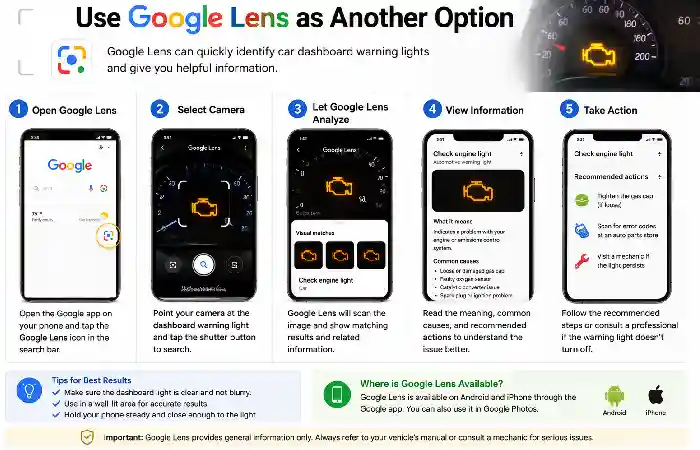
Live Search is not the only visual search solution available.
Another solution for recognizing objects and visual data could be Google Lens. As per Google, Lens would be able to give information related to photos, objects around the user, and image searches.
On Android, Google gives an account of how to use Chrome for camera search:
- Launch Chrome
- Launch a new tab
- Click on the Google Lens icon
- Select camera search
- Point the camera towards the object
- Search.
A picture can be used instead of a camera feed.
The Benefits of Using a Picture from a Dashboard
A picture can be more descriptive than a verbal description.
For instance, it might become difficult to describe whether a certain symbol resembles:
- Engine
- Battery
- Steering Wheel
- Tires
- Oil Can
- Brake System
- Airbags
A visual search system will be able to compare the object in the picture to available information and search results. Google mentions that Lens will be able to give information about objects and similar pictures uploaded by the user.
Common Dashboard Warning Symbols
Here are several common categories of dashboard warnings you may encounter.
| Symbol Type | Common Meaning |
| Engine-shaped symbol | Check engine / engine-management issue. |
| Oil-can symbol | Oil-pressure or lubrication warning |
| Battery symbol | Charging-system warning |
| Tire-shaped symbol | Tire-pressure monitoring warning |
| Brake symbol | Brake-system or parking-brake warning |
| Airbag symbol | Supplemental restraint-system warning |
| Steering-wheel symbol | Power-steering warning |
| Temperature symbol | Engine-coolant temperature warning |
| Seat-belt symbol | Seat-belt reminder |
These are general descriptions only. Always verify the exact meaning for your vehicle.
What Do Dashboard Colors Usually Tell You?
Dash warning colors may show urgency.
Red dash warning signals about the urgency to deal with a particular issue, while amber/yellow dash warning signals that a particular system needs servicing. Yet, it all depends on the manufacturer; the meaning can vary.
Green/blue symbols, in turn, provide some additional information rather than show a problem.
As the warning systems may vary depending on a manufacturer, one should not take just the color into account when trying to decide whether the warning is important or not.
What Should You Do If There Is a Red Dash Warning?
A red dash warning demands extra attention.
It could mean a problem with:
- Brakes
- Oil pressure
- Engine temperature
- Charging systems
- Safety systems
In case your car shows some abnormalities, stop and try to understand what the problem is by reading the manual or contacting an expert.
Do not drive just because the AI-based visual search says that a particular dash warning can be neglected.
What If The Check Engine Light Comes On?
The check engine light could mean multiple issues, ranging from insignificant to serious ones requiring professional help.
Even though visual search might help to identify the engine symbol on the dash correctly, it still cannot say what the reason behind this issue is just by seeing the dash.
In case of an engine warning, diagnostics are required.
To diagnose the problem, the mechanic will have to use an OBD diagnostic scanner to get trouble codes.
Can Search Live Diagnose a Car Problem?
That is why it is very important to pay attention to this aspect.
Search Live can help to recognize a particular symbol, yet it does not mean that it diagnoses a problem.
For instance, if Search recognizes an engine symbol on the dash, it will not know:
- The malfunctioning part
- If it is a serious problem
- If the car is safe to drive
- If the dash warning is intermittent
- If any other problems cause this dash warning.
What Should You Do After Identifying the Symbol?
Once you have figured out what the symbol means, move forward according to the vehicle manufacturer’s instructions.
A logical process is:
Identify → Check manual → Check symptoms → Decide whether professional inspection is necessary.
If the warning relates to a dangerous system, put safety first.
What if the Search Tool Identifies an Incorrect Symbol on Your Dashboard?
AI-based visual search tools aren’t perfect.
The dashboard can have:
- Reflections
- Glare
- Several warning lights
- Fuzzy icons
- Strange symbols used by manufacturers
Google’s visual search tools are made to recognize objects and give relevant information about them, but this information shouldn’t be considered reliable mechanical diagnostics. Google Lens itself could show you some visual matches and relevant information instead of technical diagnosis.
If you are not sure about the results, take another picture and compare it to your owner’s manual.
Tips for Taking a Better Dashboard Picture
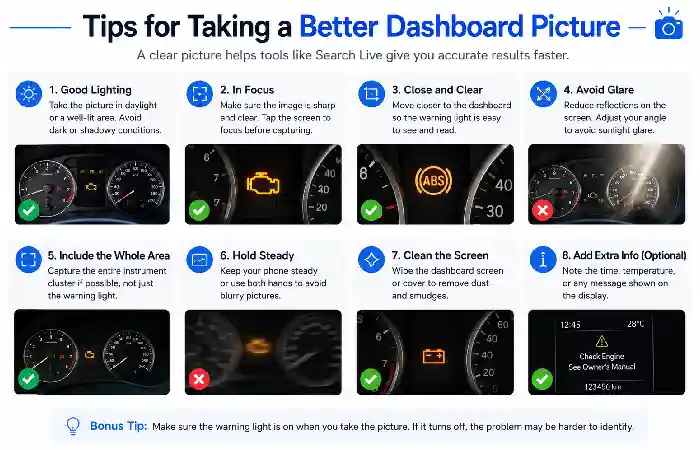
For better recognition of the symbols:
- Park in a safe place first.
- Turn off unnecessary interior lights if they cause any reflections.
- Hold the phone still.
- Make sure that the icon is in focus.
- Take a photo of the whole dashboard.
- Take an additional photo of the warning in question.
- Include vehicle make, model, and year in your question.
It will help identify the icon better.
When Do You Need to Consult a Professional?
Professional help is required when:
- Some serious warning light stays lit.
- There are several warning lights on at once.
- The car stops working.
- The engine overheats.
- The brakes don’t feel right.
- It’s hard to steer the car.
- You smell something burning.
- There is smoke.
- The car makes weird mechanical sounds.
In such cases, recognizing the symbol is only one of the steps to take.
How Do I Use Search Live to Identify the Signs Showing on My Car Dashboard Safely?
It is advisable to use Search Live as an informational and identificatory solution rather than as an emergency diagnosis system.
The workflow might be the following:
- Safely stop the car.
- Open the Search Live application.
- Snap the dashboard symbol using the phone camera.
- Ask what the symbol means.
- Indicate the make, model, and year of the car.
- Ask any other questions related to the symbol.
- Check the owner’s manual.
- Follow the recommendations provided by the manufacturer.
- In case the warning seems to indicate a serious problem, contact a professional mechanic.
FAQ
How do I use Search Live to identify the signs showing on my car dashboard?
Safely park the car, open Google’s Search Live experience when available, use the phone camera to show the dashboard symbol, and ask Search what it means. Then, you may ask other questions related to the symbol. Google’s documentation confirms that Search Live can accept visual input via the camera and provide conversational responses.
Can Google Search Live identify a dashboard warning light?
It can attempt to identify visual information shown through the camera. However, it cannot be considered a definitive mechanical diagnosis.
Can I use Google Lens instead?
Yes. Google Lens can analyze images and objects. Google documents the camera-based visual search on Android and the image-based visual search on desktop.
Should I use Search Live while driving?
No. It is recommended to park safely before opening the app and taking pictures.
What if the dashboard symbol is red?
Red warnings should be taken seriously and checked in the owner’s manual. In case the car shows dangerous symptoms or if the warning is related to some critical systems, park safely and seek professional help.
Can Search Live tell me whether my car is safe to drive?
It might provide some information; however, it cannot be considered reliable enough to make the decision. The vehicle safety decision should be based on the manufacturer’s recommendations, vehicle symptoms, and professional diagnoses if needed.
Final Thoughts
Anyone wondering how to use Search Live to find the indicators that have appeared on my car dashboard may use the camera-enabled Search Live from Google to find out the meaning of those icons. Search Live enables the user to take a search through their camera and follow up on questions.
Google Lens is another tool that will help take/upload a picture to learn more about the item/symbol.
It should be noted that recognizing a warning icon does not equal diagnosing a car issue. Check the owner’s manual if you have any questions regarding your particular car, and consult with a professional in case the warning light is related to brakes, engine temperature, oil pressure, steering, airbags, and other vital systems of your car.